How to Compress JPEG Images Without Losing Quality
Learn how quality settings, chroma subsampling and modern codecs work together to shrink JPEG files with no visible loss.
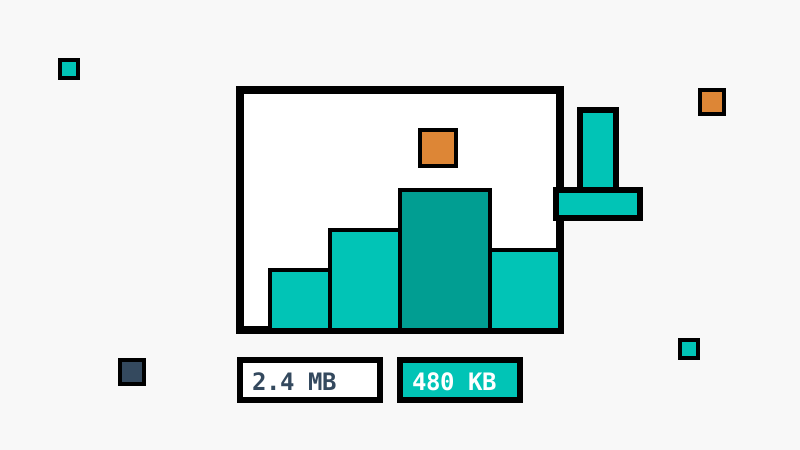
JPEG files are everywhere — camera rolls, email attachments, blog posts. They are also almost always bigger than they need to be. Here is how to shrink them without any visible quality loss.
Understand the quality slider
JPEG compression is lossy, but “lossy” does not mean “worse looking”. The quality scale is nonlinear:
- 90–100 — visually identical to the original, often 30–50% smaller
- 75–90 — the sweet spot for photos; hard to tell apart from the original
- 50–75 — fine for thumbnails and previews
- below 50 — visible artifacts start to appear
Rule of thumb: start at 80 and only go lower if the file is still too heavy.
Resize before you compress
The fastest way to save bytes is to serve the image at the size it is actually displayed. A 4000×3000 photo shown in a 800px column wastes more than 90% of its pixels.
Pick the right output format
If your target supports modern formats, converting from JPEG to WebP typically saves another 25–35% at the same visual quality. For maximum savings on photos, AVIF can cut file size in half.
Compress locally, stay private
Online compressors that upload your files to a server add latency and a privacy risk. A browser-based tool does the work on your device — the image never leaves it, and results appear instantly.